How to Add/Remove Email Mailboxes
Updated Nov 18, 2026 · 1 min read
This will show you how to create a new email box, remove existing email boxes, or create an alias for an account.
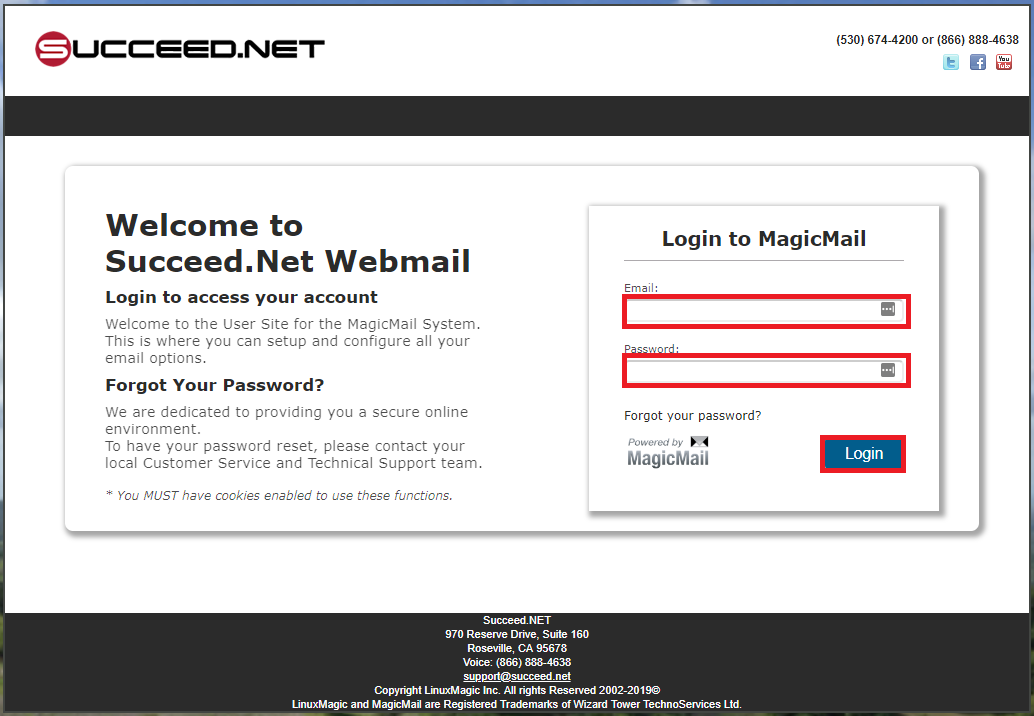
1.) Log into your email at https://mail.succeed.net
2.) Once logged in you will select the "Manage Mailboxes" Setting
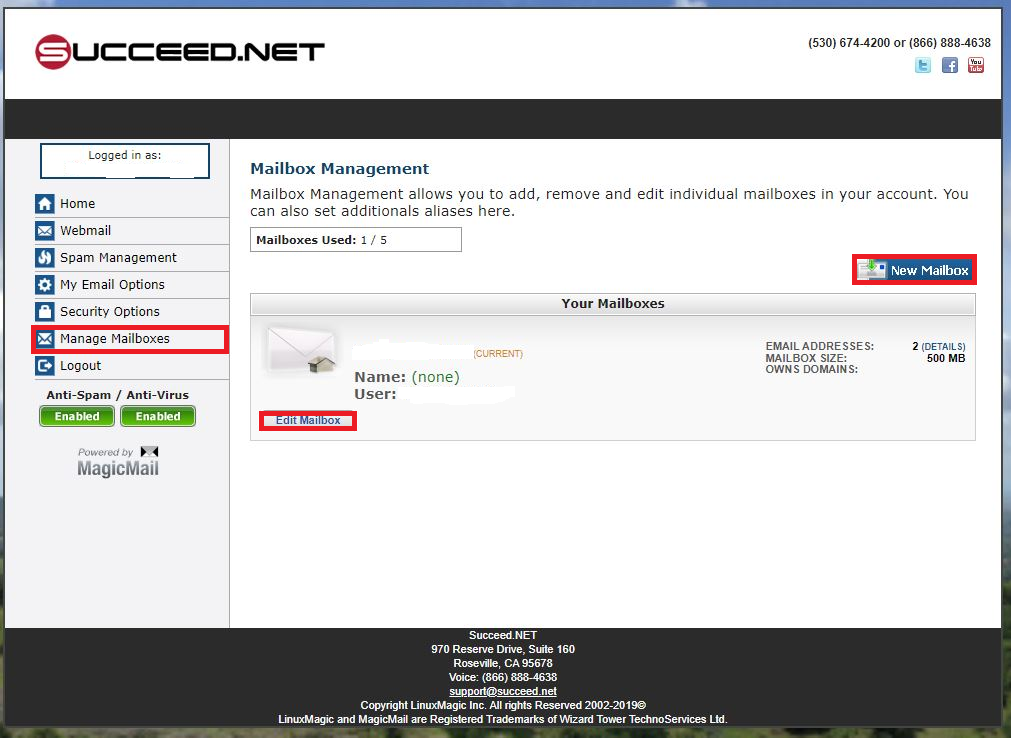
3.) From here you can either select "Edit Mailbox" to update the mailbox password, remove an existing email (You cannot delete your first email mailbox) or select "New Mailbox" to create a new email address mailbox.
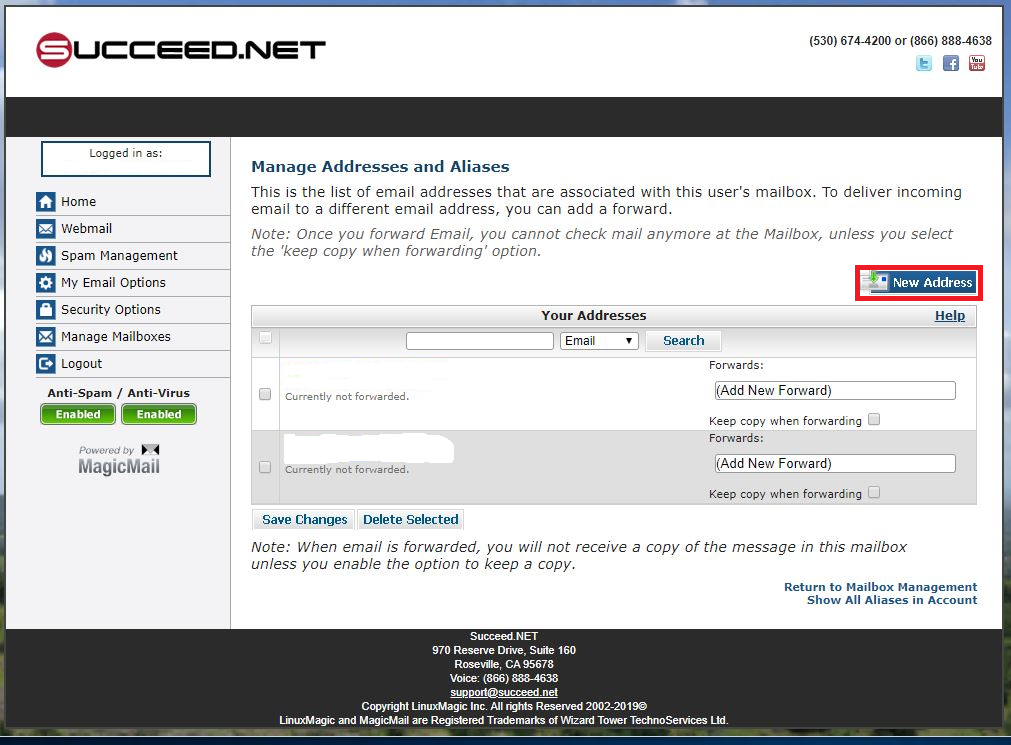
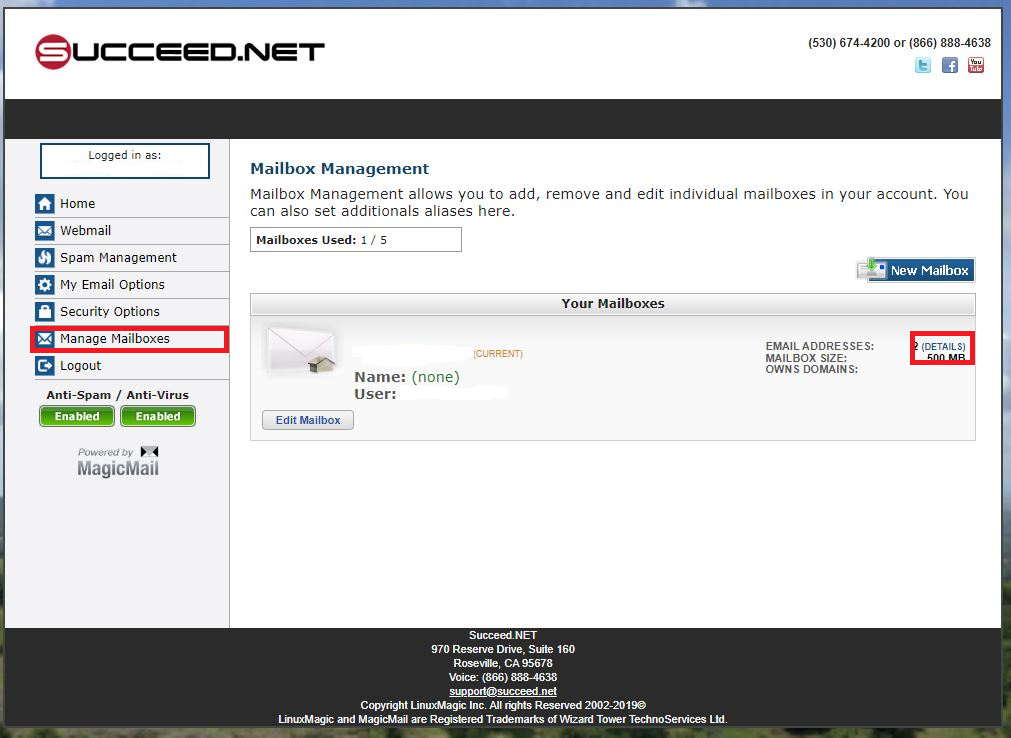
4.) If you want to add an Alias to an existing email, (this will allow multiple emails come into the same inbox and does not affect your mailbox total), click the "Details" option
5.) Once here you can add your additional aliases and have them deliver to your inbox or forward to another