UNIX - Change Website main FTP/Admin Password
Updated Nov 18, 2026 · 1 min read
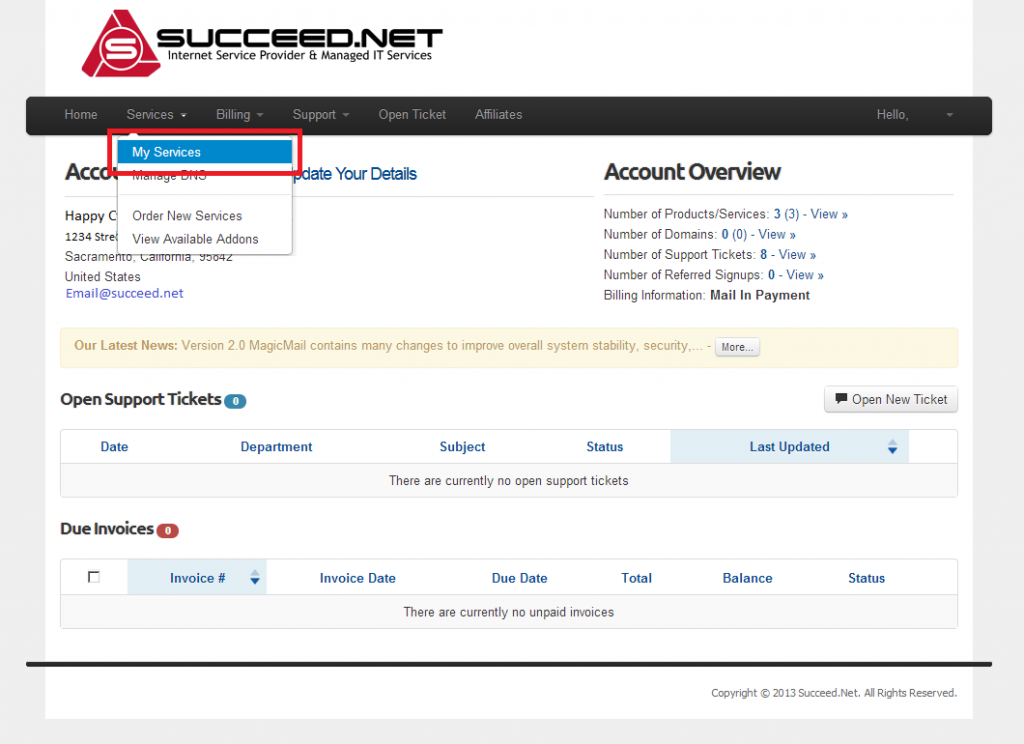
- Log into your Customer Account Area. In the menu across the top of the page click on Services -> My Services
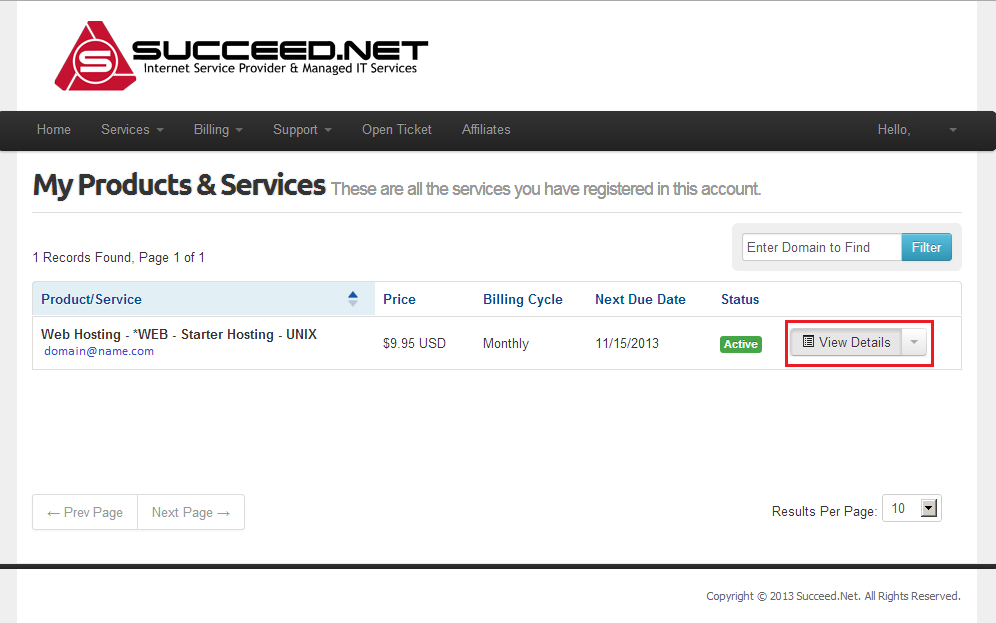
- You should now be on the My Products and Services page which gives you a list of the services on your account. Click on the View Details button to the far right of the domain that you would like to change the password on.
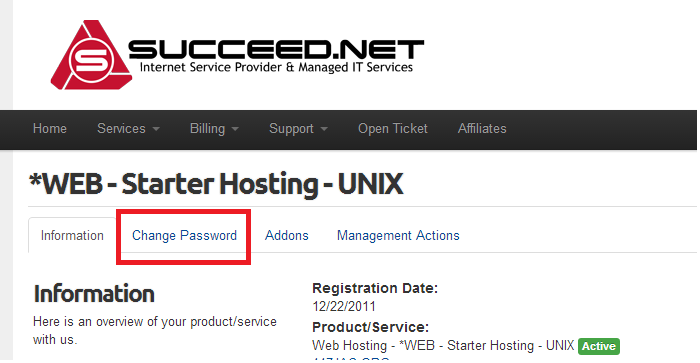
- You should now be on the product detail page for the domain you selected. To change the password on your account click on the Change Password tab.
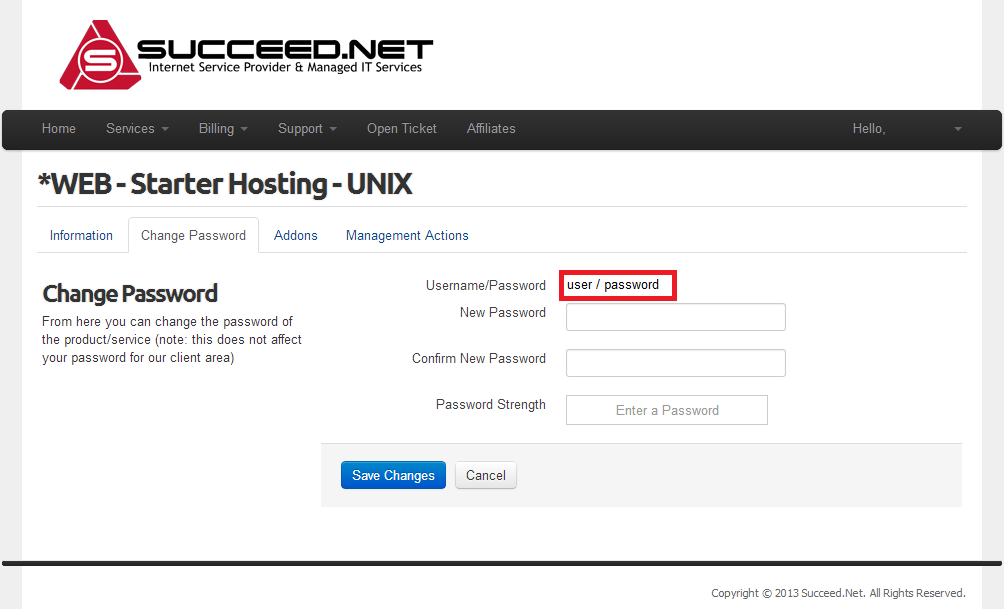
- On this page you should see the current username/password for the admin website user. This username and password combo can be used to login via FTP as well as logging into your CPanel backend. To change the password for this user simply enter a new password and click the Save Changes button